ZATCA Phase 2: How to Generate Your Onboarding OTP in the Fatoora Portal
Step-by-step guide with screenshots for Saudi taxpayers joining ZATCA Phase 2 e-invoicing: log in to the Fatoora portal, open Onboard New Solution Unit/Device, generate a one-time password (OTP) and hand it over within the one-hour window. Also covers what to do when a code expires.
Generate your ZATCA onboarding OTP in the Fatoora portal
To connect BIZA to ZATCA for Phase 2 e-invoicing, ZATCA asks for a one-time password (OTP) from your own Fatoora portal account. The code proves that you, the taxpayer, approve this invoicing system for your VAT number.
The whole task takes about five minutes. Only someone with your company's ZATCA login can do it.
Download this guide as a PDF: English · العربية
⏱️ Each OTP expires 1 hour after you generate it. Generate it only when your BIZA onboarding contact is ready to use it. If it runs out, generate a new one. That's free and you can do it as often as you need.
Before you start
- Your ZATCA login (ERAD credentials): the TIN or email registered with ZATCA, plus the password. This is the login you use for VAT returns on the ZATCA website. It is not a Developer Portal account.
- Access to the registered mobile number, in case ZATCA sends a verification code when you sign in.
- How many codes you need. You need one OTP per device, such as a branch or a cash counter. If you are unsure, generate 1.
Step 1: Log in to the Fatoora portal
Open fatoora.zatca.gov.sa and sign in with your TIN or email and password. You can also reach it from the ZATCA website by clicking the Fatoora icon.
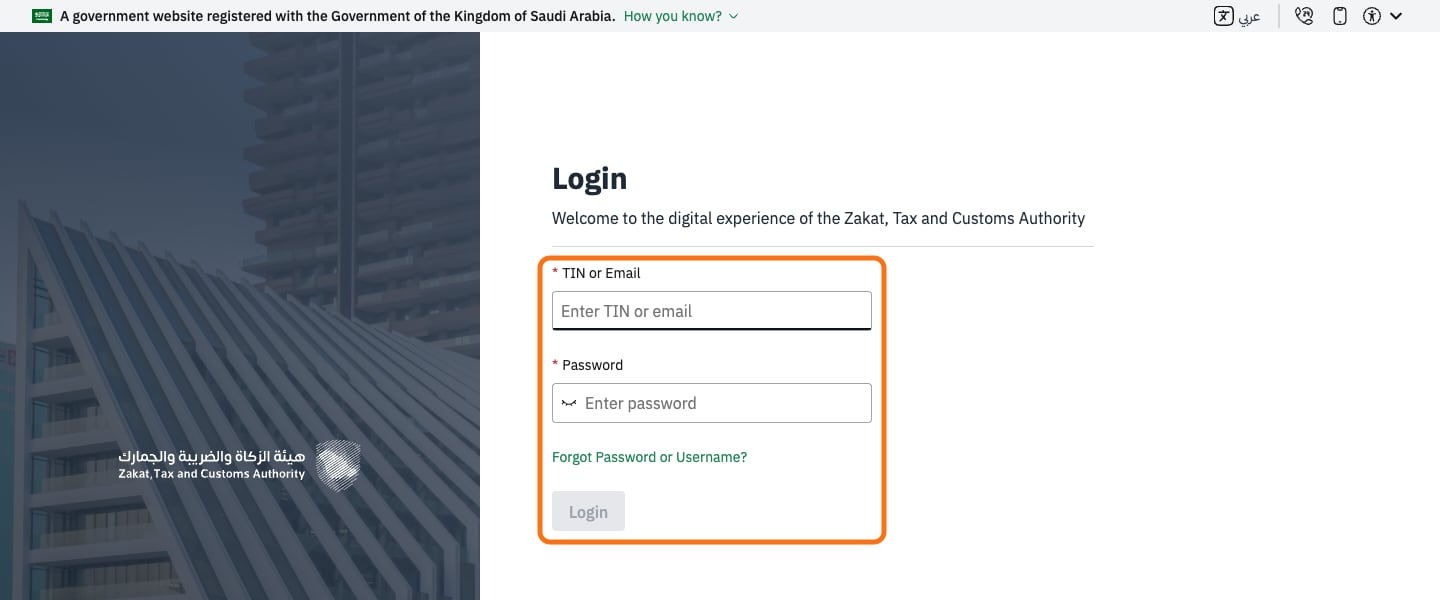
Forgot your password? Use Forgot Password or Username? on the same screen. BIZA cannot reset ZATCA logins.
Step 2: Open "Onboard New Solution Unit/Device"
After you sign in, you land on the Fatoora Portal page. Click the first tile, Onboard New Solution Unit/Device. The same link is also in the menu on the left.
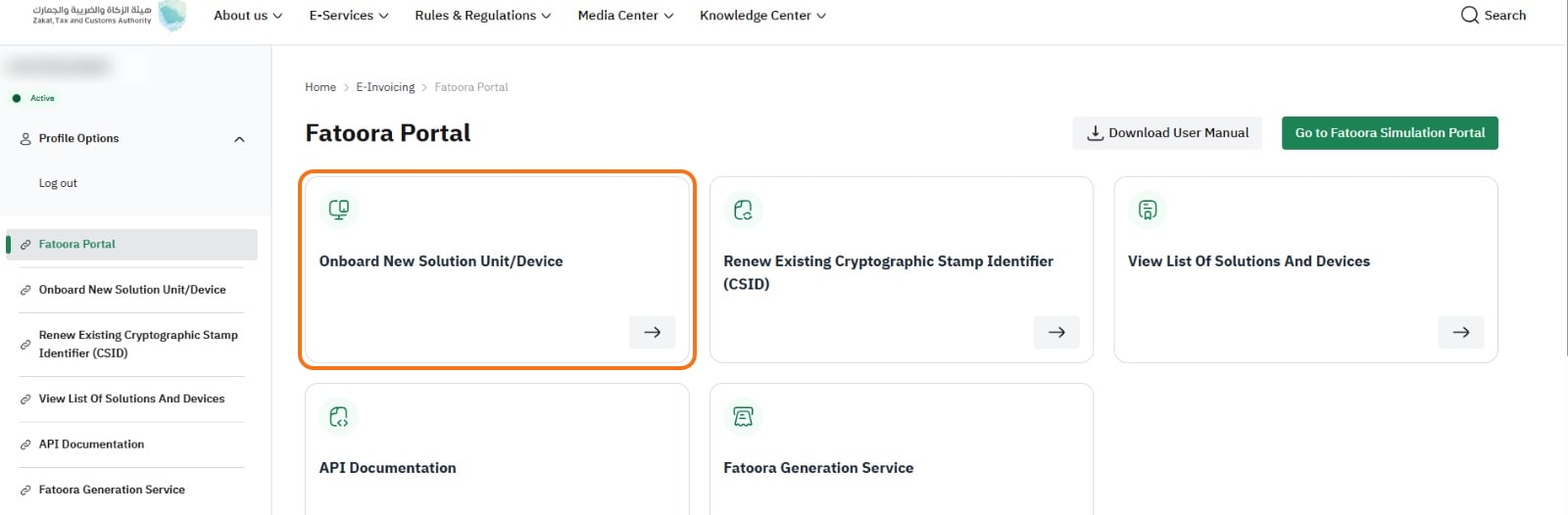
Don't use Renew Existing Cryptographic Stamp Identifier (CSID) for a first-time connection. That tile is only for renewing an existing certificate later.
Step 3: Choose how many codes, then generate
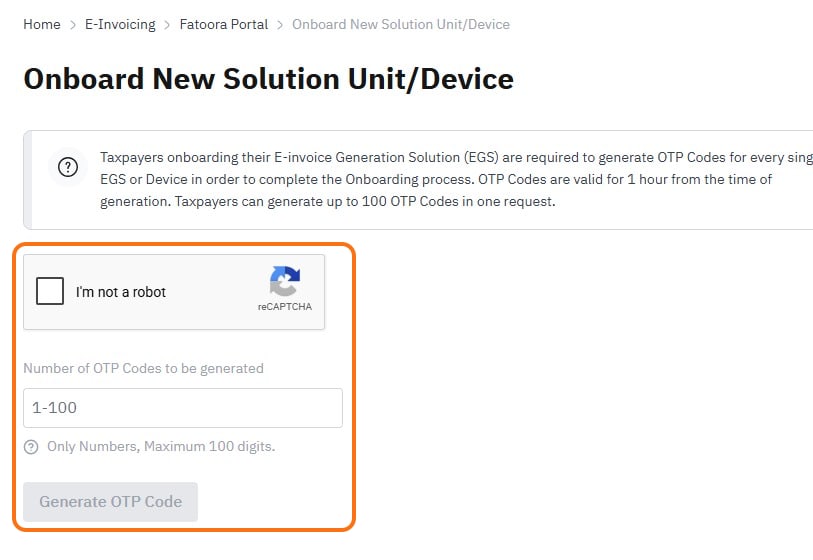
- Tick I'm not a robot and complete the check if it asks.
- In Number of OTP Codes to be generated, type the number of devices you are connecting, usually 1. The most you can request at once is 100.
- Click Generate OTP Code.
Step 4: Copy the code and send it right away
The portal lists one 6-digit code per line, one for each device, under the notice OTP Code is valid for 1 hour. Click the copy icon beside a code, or click Export to File to download them all.
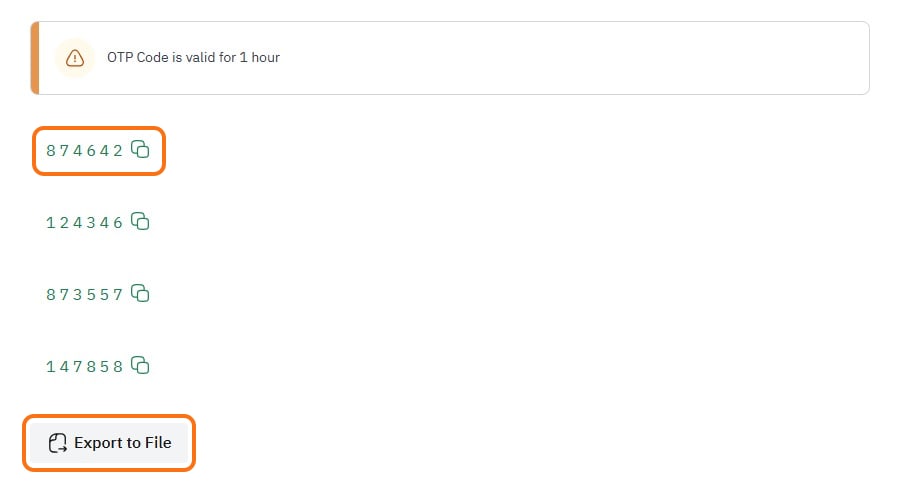
Send the code to your BIZA onboarding contact straight away, through a private channel such as a direct message or a phone call. The 1-hour clock is already running.
🔒 Treat the OTP like a password. Don't post it in group chats or shared email threads. Anyone holding a valid OTP could register an invoicing device under your VAT number within that hour.
That's all you need to do in the Fatoora portal. Your BIZA contact will tell you when the connection is complete.
Common problems
| What you see | What to do |
|---|---|
| We report that the OTP is invalid or expired | More than an hour has passed, or the code was mistyped. Generate a new code (Steps 2–4) and send it again. |
| You can't log in, or your password doesn't work | Use Forgot Password or Username? on the login screen. If your registered mobile number has changed, update it with ZATCA first. |
| You don't see the Onboard New Solution Unit/Device tile | Make sure you are logged in as the VAT-registered entity, not as an individual or a customs account. |
| Anything else on the ZATCA side | Call ZATCA's 24/7 customer service on 19993 (inside the Kingdom) or +966 11 204 8998, or email FatooraSupport@myzatca.gov.sa. |
The screenshots show the live portal as of November 2026, with the TIN blurred. The codes shown have expired. The highlights are ours.
For what happens after onboarding, including clearance, reporting and QR codes, see ZATCA Phase 2 E-Invoicing (Fatoora) Compliance & Clearance.